Introduction
jDeploy is a comprehensive platform for packaging, publishing, and deploying Java desktop applications. It provides an end-to-end solution that handles everything from building native installers to managing automatic updates and cross-platform distribution.
This document provides a high-level architectural overview of jDeploy, covering its major components, their relationships, and the key workflows that power the system.
Design Philosophy
jDeploy’s core philosophy is to minimize the friction involved in delivering Java applications to the desktop—for both developers and end users.
On the developer side, a newcomer to jDeploy should be able to publish their application in just a few minutes with minimal configuration. jDeploy auto-detects project structure, main classes, and dependencies so that most apps "just work" out of the box.
On the end-user side, installing and running a jDeploy application should be as simple as any native app. Users download an installer, run it, and the app works—no JVM installation required, no complex setup steps.
At the same time, jDeploy is flexible enough to support any feature a desktop application might need: custom URL schemes, file associations, background services, system tray integration, code signing, and more. Simple apps stay simple; complex apps have the tools they need.
System Overview
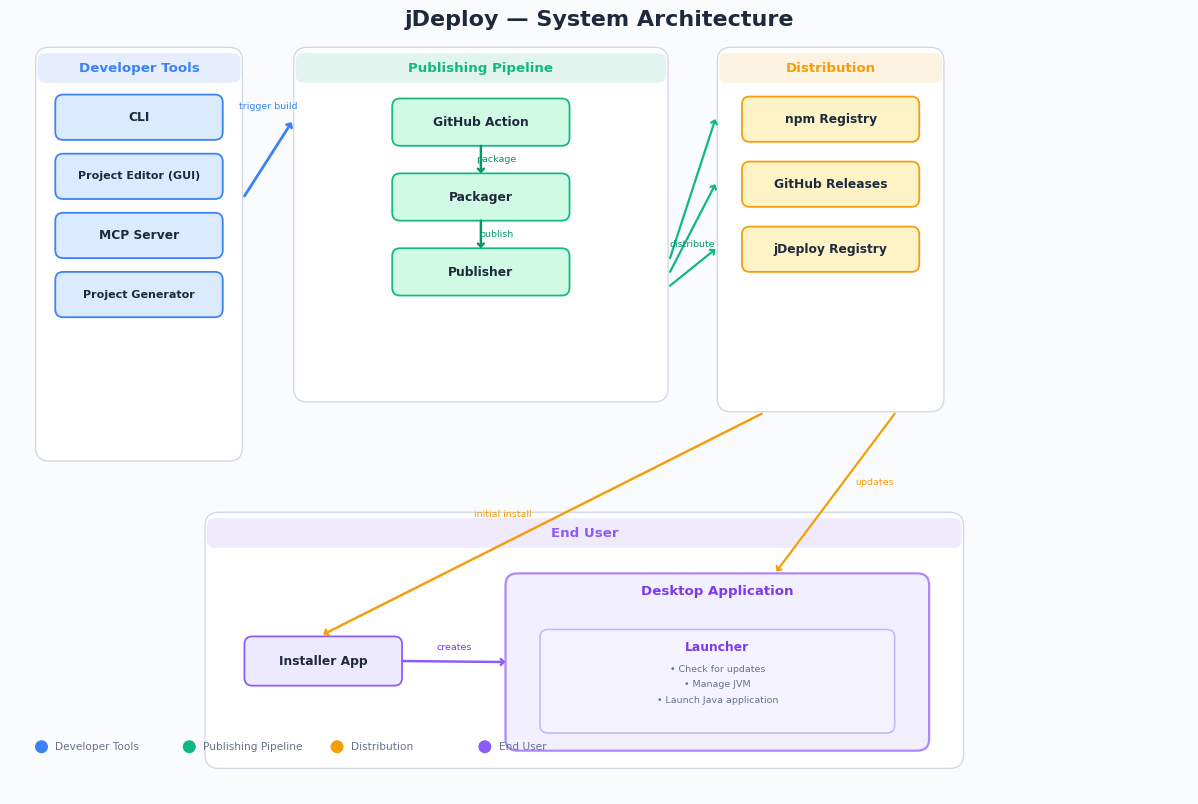
System Overview Diagram
Components
jDeploy consists of 14 components organized into four categories: Developer Tools, Publishing Pipeline, Distribution, and End-User Runtime.
Developer Tools
These are the interfaces developers use to configure, package, and publish their applications.
CLI
The command-line interface for jDeploy. Developers use it to initialize projects, package applications, and publish releases. It’s ideal for CI/CD integration and developers who prefer terminal workflows.
Project Editor (GUI)
A desktop application that provides a visual interface for configuring jDeploy projects. It offers the same capabilities as the CLI through a graphical interface with real-time validation and one-click publishing.
MCP Server
New in jDeploy 6.0, the MCP (Model Context Protocol) Server enables AI assistants like Claude Code to set up and manage jDeploy projects through natural language. It integrates with the same services used by the CLI and GUI.
Project Generator
Creates new Java projects from templates. Available templates include Swing, JavaFX, Kotlin Multiplatform, Codename One, Quarkus, Spring, and PicoCLI. The generator handles project scaffolding, Git initialization, and optional GitHub Actions setup.
Publishing Pipeline
These components handle the build and release process.
GitHub Action
Enables automated publishing as part of CI/CD workflows. It can publish on every commit (snapshot builds) or on tagged releases, supporting both npm and GitHub Releases as targets.
Packager
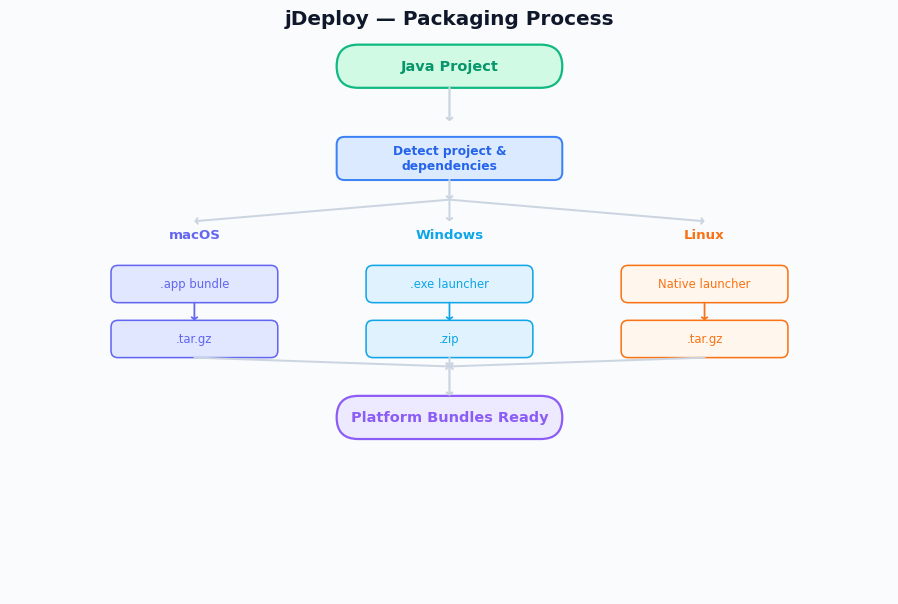
Builds native application bundles for each target platform. It locates the application JAR, resolves dependencies, and creates platform-specific packages:
-
macOS: .app bundle compressed as .tar.gz
-
Windows: .exe launcher with files in .zip
-
Linux: Native executable with files in .tar.gz
Packaging Process Diagram
Publisher
Uploads packaged applications to distribution targets. Currently supports:
-
npm Registry: Applications can be run via
npx, easy versioning -
GitHub Releases: Integrated with source control, supports private repos
The publisher architecture is pluggable, allowing additional targets to be added in the future.
Distribution
These components store and serve published applications.
npm Registry / GitHub Releases
The actual storage for published application bundles. Developers choose one based on their needs—npm for public discovery and easy versioning, GitHub for integration with existing release workflows.
jDeploy Registry
A central metadata store that indexes published applications. It stores minimal information (icon, title, description, splash screens) to power the download page and enable application discovery.
Download Page
The jDeploy website provides download pages for all registered applications at https://www.jdeploy.com/~packageName. It auto-detects the user’s platform, provides download buttons for all supported platforms, and works with both npm and GitHub-hosted apps.
End-User Runtime
These components run on the end user’s machine.
Installer
A cross-platform desktop application that users download and run to install jDeploy applications. It handles:
-
Downloading the application bundle
-
Platform-specific installation (shortcuts, file associations, registry entries)
-
Optional CLI command launchers installed to PATH (if the app has commands configured)
-
Optional AI tool integration configuration
-
Optional background service installation
Launcher
A native executable (written in Go) embedded within each installed application. The launcher is responsible for:
-
Checking for application updates at startup
-
Downloading and applying updates transparently
-
Detecting or downloading an appropriate JVM
-
Displaying splash screens during startup
-
Enforcing singleton instance mode (if configured)
-
Handling deep links and file associations
JVM Providers
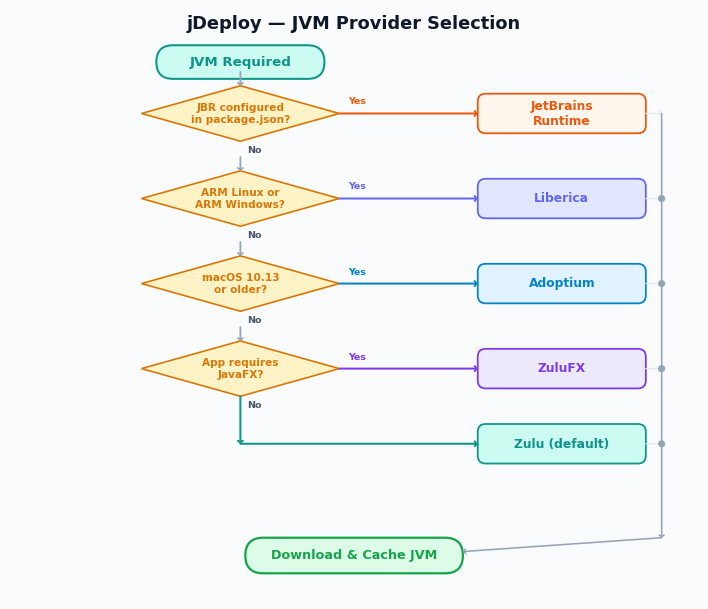
The launcher can download a JVM from multiple providers, automatically selecting the most appropriate one:
| Provider | When Used |
|---|---|
Zulu |
Default for most platforms |
ZuluFX |
When the app requires JavaFX |
Liberica |
ARM Linux and ARM Windows |
Adoptium |
macOS 10.13 and older |
JetBrains Runtime (JBR) |
Only when explicitly configured in package.json |
JVM Provider Selection Diagram
npm Launcher
When applications are published to npm, users can also run them directly via npx my-app. This downloads a small launcher script that fetches and caches the native launcher, providing a familiar workflow for JavaScript developers.
Desktop Lib
An optional library that applications can include for enhanced desktop integration: singleton mode, deep linking (custom URL schemes), file associations, and IPC with the launcher.
Background Helper
When applications include background services, this component provides system tray integration with controls to start/stop services, view logs, and configure startup behavior.
Key Workflows
Developer: Create and Publish New Project
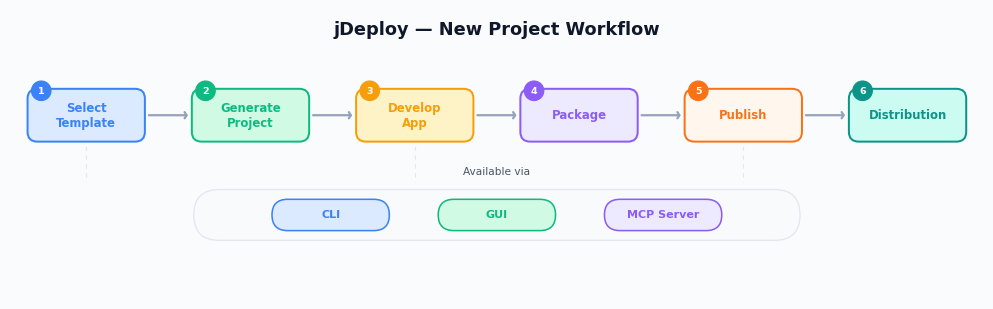
Developers can create a new project using the CLI, GUI, or MCP server. They select a template (Swing, JavaFX, etc.), provide project details, and the generator creates a complete project with build configuration and optional GitHub Actions workflow. After development, they package and publish to make the app available to users.
Developer: Set Up Existing Project
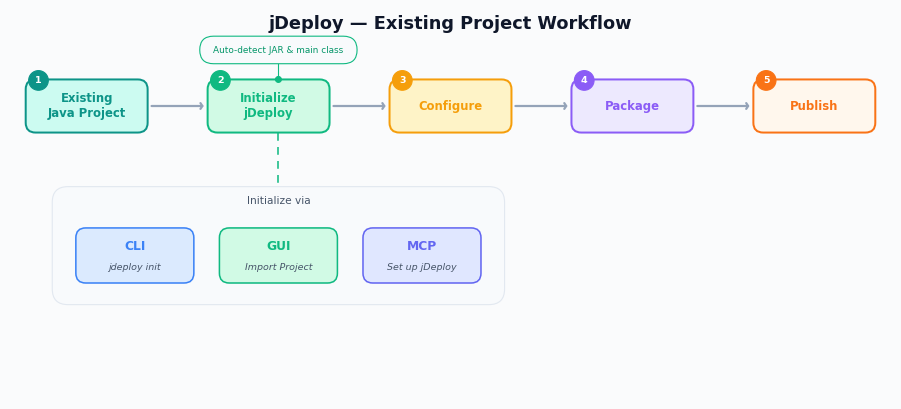
For existing Java projects, developers can initialize jDeploy using the CLI (jdeploy init), the GUI ("Import Project"), or the MCP server ("Set up jDeploy"). jDeploy auto-detects the project type, locates the JAR, and creates the necessary configuration. The developer can then customize settings and publish.
Developer: Release New Version
Releasing a new version is as simple as updating the version number and running the publish command. With GitHub Actions configured, pushing a tag automatically triggers packaging and publishing.
User: Install Application
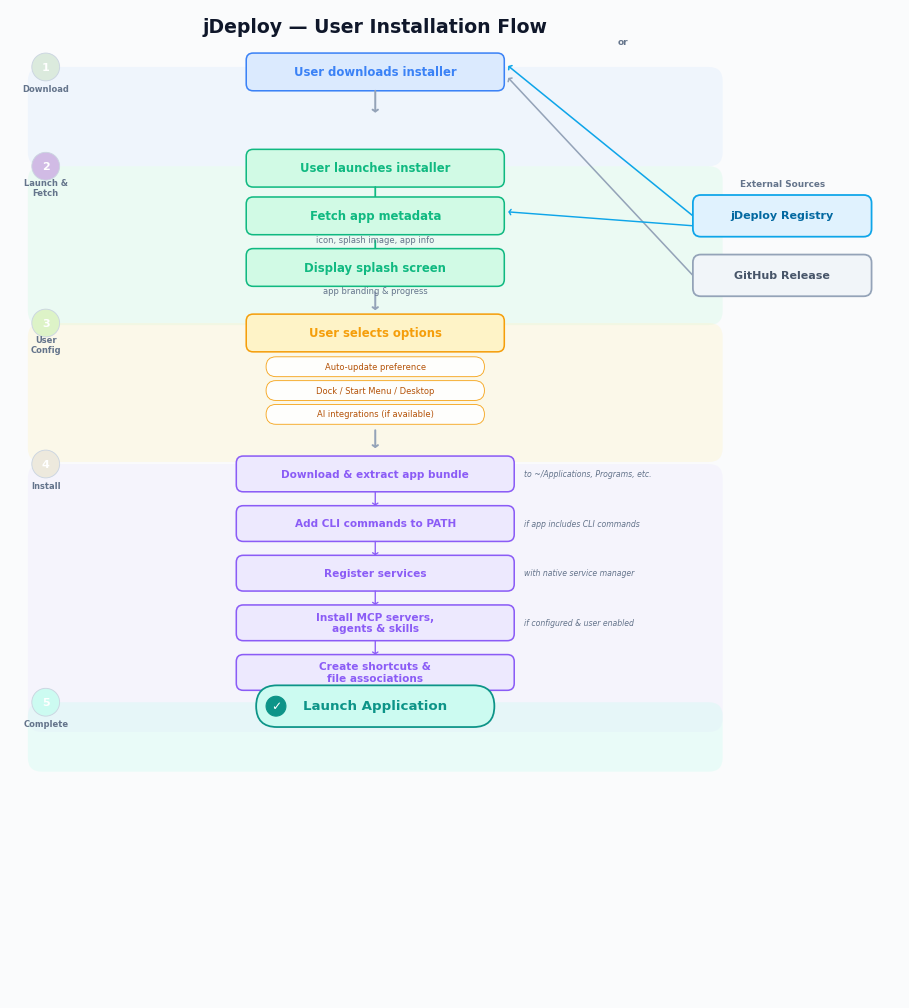
Users download the installer from the jDeploy download page or a GitHub release, then run it. The installer fetches app metadata (icon, splash screen) from the registry, presents installation options, and installs the application along with any configured CLI commands, services, or AI integrations.
User: Launch and Update
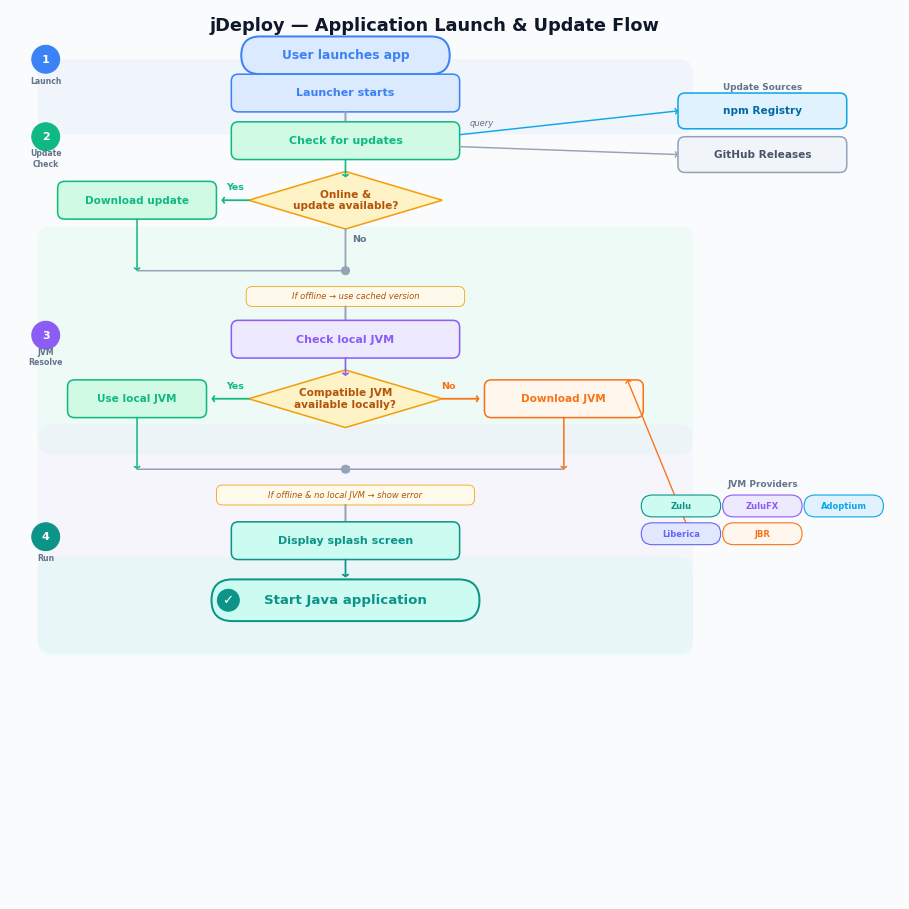
When users launch the application, the embedded launcher checks for updates from npm or GitHub (depending on where the app was published). If an update is available, it downloads and applies it. The launcher also ensures a compatible JVM is present, downloading from the appropriate JVM provider if needed. If the app is offline or can’t reach the servers, the launcher simply proceeds with the cached version—the app still works.
Component Relationships
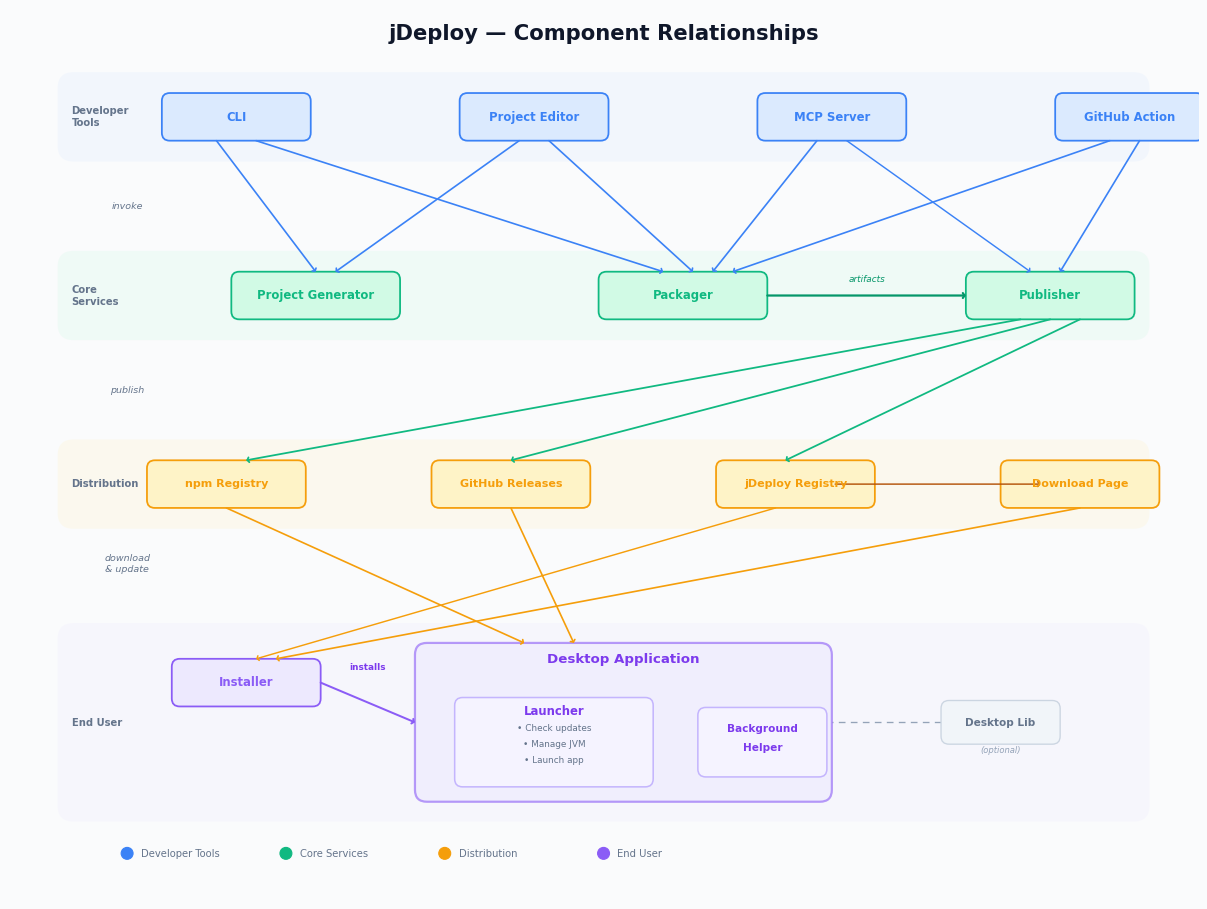
The diagram above shows how all jDeploy components relate to each other:
-
Developer tools (CLI, GUI, MCP Server, GitHub Action) all use the same underlying services
-
Core services (Project Generator, Packager, Publisher) do the actual work
-
Distribution (npm, GitHub, Registry) stores packages and metadata
-
End-user components (Installer, Launcher, Background Helper) run on user machines
Configuration
jDeploy uses package.json as its primary configuration file. The jdeploy section contains all jDeploy-specific settings:
{
  "name": "my-app",
  "version": "1.0.0",
  "jdeploy": {
    "jar": "target/my-app.jar",
    "javaVersion": "11",
    "title": "My Application",
    "icon": "icon.png"
  }
}
For full configuration options, see the jDeploy Manual.
Related Documentation
-
jDeploy Manual - Comprehensive configuration reference
-
Getting Started (CLI) - CLI quickstart tutorial
-
Getting Started (GUI) - GUI quickstart tutorial
-
jDeploy 6.0 Release Notes - Latest features